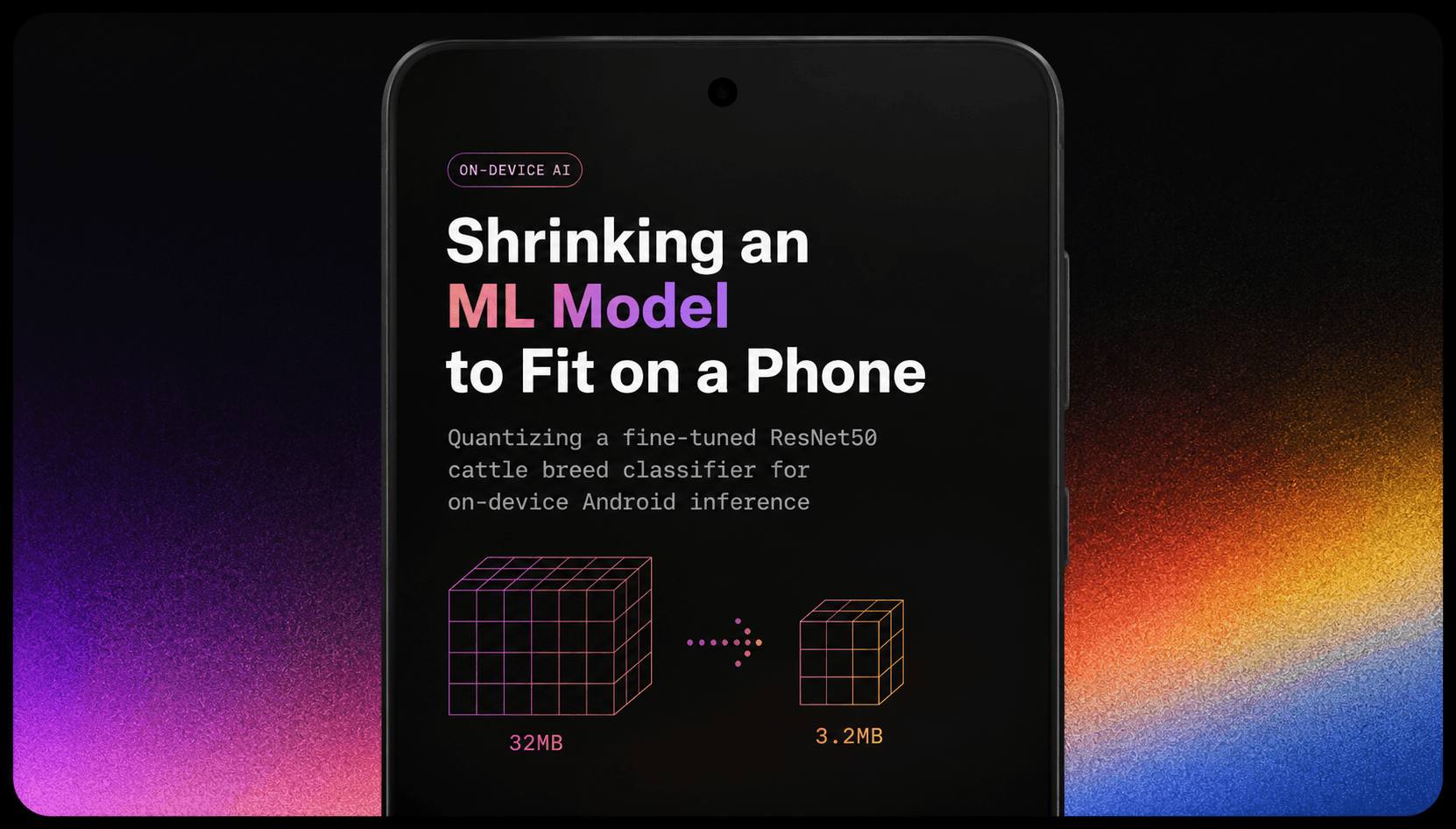
Shrinking an ML Model to Fit on a Phone
Taking a 94MB fine-tuned ResNet50 down to 24MB with post-training INT8 quantization, and measuring exactly what that costs.
CattleApp looks at a photo and tells you what breed of cattle it is. Point your camera at a cow, get back a breed name and a confidence score. That's useful the moment you're standing next to an actual animal with no easy way to look it up. Under the hood is a ResNet50, a well-known image-recognition model, fine-tuned on 41 Indian and exotic breeds. It's good at this: 91% of the time its top guess is right, and 97.6% of the time the right answer is somewhere in its top three guesses. That's a genuinely hard problem, since a lot of these breeds look nearly identical to anyone who isn't an expert, which is the whole reason the app needs to exist.
There was one problem: the model came out of training at 94MB. That number matters more than it sounds like it should. The whole point of running this model directly on the phone, instead of sending every photo to a server, is captured in what the app's own code calls it: an "offline scan." You're not always going to have signal out in a field. And 94MB isn't something you casually bundle into an app or want sitting in memory on whatever phone happens to be nearby. This post is about the process of shrinking that model down to 24MB, and, more importantly than the size number itself, about actually measuring what got lost along the way instead of just assuming "smaller" means "still fine."
What You'll See
A PyTorch model exported through a couple of formats until it's something a phone can run; a technique called quantization that shrinks it by storing numbers less precisely; a real evaluation (5 separate test runs, 4,773 images, plus an actual timed test on a physical phone) comparing the original model against the shrunk one; the Kotlin code that runs the shrunk model on-device, wired up to a real toggle switch in the app; and, once the model itself was as small as it was going to get, a pass at shrinking the surrounding Android app too, including a real bug that broke and how it got fixed.
Tech Stack: PyTorch, ONNX, onnx2tf, TensorFlow Lite, Kotlin, R8/ProGuard.
The Model
Training started with a technique called transfer learning: take a model that's already good at recognizing images in general (ResNet50, pretrained on millions of everyday photos) and adapt it to a narrower job instead of training something from scratch. The first step freezes almost the whole network in place and trains only a small new final layer to recognize the 41 specific breeds:
weights = ResNet50_Weights.IMAGENET1K_V2
model = models.resnet50(weights=weights)

for param in model.parameters():
    param.requires_grad = False

num_ftrs = model.fc.in_features
model.fc = nn.Linear(num_ftrs, num_classes)
That gets you a working classifier fast, but it's not the version that shipped. The deployed model went through a second round of training that unfreezes more of the network and swaps that bare final layer for one with a bit of built-in regularization (a Dropout layer, which helps the model avoid over-memorizing the training photos):
model.fc = nn.Sequential(
    nn.Dropout(p=dropout_prob),
    nn.Linear(num_ftrs, num_classes)
)
41 breeds, 12,305 photos, and a dataset where some breeds simply have way more reference photos than others (fixing that imbalance is its own separate story). The end result, a file called best_breed_classifier_finetuned.pth, is the model everything below is built on.
Getting a PyTorch Model to a Phone
Android doesn't know how to run a PyTorch model directly. It runs a format called TensorFlow Lite instead, so the model has to travel through a small chain of conversions: PyTorch → ONNX → TensorFlow → TensorFlow Lite. Each arrow in that chain is a separate tool:
# 1. PyTorch → ONNX
dummy_input = torch.randn(1, 3, 224, 224, device='cpu')
torch.onnx.export(model, dummy_input, ONNX_MODEL_PATH, opset_version=12,
                  input_names=['input'], output_names=['output'])

# 2. ONNX → TensorFlow SavedModel, via onnx2tf
command = [sys.executable, "-m", "onnx2tf.convert",
           "-i", ONNX_MODEL_PATH, "-o", TF_SAVEDMODEL_DIR, "-kat"]
subprocess.Popen(command, stdout=subprocess.PIPE, stderr=subprocess.PIPE)
ONNX is a kind of universal middle format for machine learning models, a common language different frameworks can export to and read from. onnx2tf is the tool that reads an ONNX file and rebuilds it as a TensorFlow model, and it exists mainly because TensorFlow's own built-in ONNX support tends to choke on anything beyond very simple models. The -kat flag is one of those settings people add because leaving it off silently produces a broken result, not because everyone fully understands what it does internally. It shows up often enough in "my conversion is broken" forum threads that adding it upfront just became standard practice.
What comes out of that second step is a plain TensorFlow model at full precision, no different in kind from one trained in TensorFlow to begin with. Converting that straight to .tflite, with no extra options, is exactly how you get a 94MB file. None of the format conversion shrinks anything. It only changes the packaging.
Full-Integer Quantization
Making the model smaller is a separate, deliberate step. TFLite offers a few different levels of aggressiveness here, and the one used is called full-integer post-training quantization. In plain terms: normally a model stores every number (its weights, and the intermediate values it computes) as a 32-bit float, a fairly precise but bulky format. Quantization rounds those numbers down to 8-bit integers instead, a much smaller and less precise format that mobile phones happen to be very fast at doing math with:
def representative_dataset_gen():
    for i, (image, _) in enumerate(val_loader):
        if i >= 10: break
        yield [image.numpy().astype("float32")]

converter = tf.lite.TFLiteConverter.from_saved_model(TF_SAVEDMODEL_DIR)
converter.optimizations = [tf.lite.Optimize.DEFAULT]
converter.representative_dataset = representative_dataset_gen
converter.target_spec.supported_ops = [tf.lite.OpsSet.TFLITE_BUILTINS_INT8]

tflite_model_quant = converter.convert()
The representative_dataset part is what makes this "full integer" instead of a lighter form of compression. An 8-bit integer can only represent 256 distinct values, so the converter needs to know the realistic range of numbers flowing through each layer of the model before it can round everything down sensibly. Too narrow a range and unusual values get clipped off; too wide and you waste precision on values that never actually occur. It figures out that range by feeding real photos through the original model and watching what comes out of each layer: 320 sample images, pulled from the same set used for the accuracy numbers below.
One thing worth calling out: this code does not set inference_input_type or inference_output_type, which means those stay at their default of float32. That tripped me up at first. I assumed you'd need to set those two to 8-bit integers as well to get a "real" int8 model, since that's the more aggressive option TFLite offers. But checking the actual file's contents shows the input and output are float32 on every version of the model, quantized or not. The weights and the math happening inside the model are genuinely 8-bit integers, which is where the size and speed savings actually come from. But the model converts incoming numbers down to int8 right at its own first layer, and converts back to float32 at its last one, instead of pushing that conversion work onto whatever calls it. That's a deliberate choice, not an accident: it means the Android app can just hand over normal decimal numbers the exact same way the training code did, instead of having to reimplement that int8 rounding logic itself.
The result: 94.3MB → 24.3MB, a size reduction of about 3.9x, purely from storing everything in this more compact int8 format.
What That Actually Costs
A smaller file is the easy part to brag about. Whether the model still works properly is the part that actually matters, and answering that honestly meant not trusting a single test run. One lucky, or unlucky, batch of test images can make a shrunk model look better or worse than it really is. So both versions, the original and the shrunk one, were tested five separate times with different random samples, 30 images per breed each time, 4,773 images total:
| float32 (original) | int8 (shrunk) | |
|---|---|---|
| Size | 94.3 MB | 24.3 MB |
| Top-1 accuracy | 91.12% ± 0.86% | 90.52% ± 0.78% |
| Top-3 accuracy | 97.63% ± 0.30% | 97.37% ± 0.50% |
("Top-1" means the model's single best guess was correct. "Top-3" means the right answer showed up somewhere in its top three guesses.)
Shrinking the model cost 0.60 percentage points of top-1 accuracy and 0.26 points of top-3, and that held steady across five different batches of test images, which is small enough to be genuinely not worth worrying about given the size and speed gained in return. The two versions also agreed with each other on 97% of predictions, a separate and useful fact from raw accuracy: it means shrinking the model isn't introducing a bunch of new kinds of mistakes, it's just occasionally a little less sure on the same hard cases both versions already struggle with.
One honest caveat, straight from the evaluation notes: the original training code never used a fixed random seed when it split photos into training and test sets, so it's possible some of these "test" images were actually seen during training. That means the absolute accuracy numbers above might be a bit optimistic for both versions. What's still trustworthy either way is the gap between the two versions, since both were scored on the exact same images every time. The comparison holds up; the raw 91% shouldn't be taken as gospel.
The most interesting single result, though, came from testing real phone photos by hand: a photo of a Gir cow, run through both versions back to back. The shrunk model got it right, calling it a Gir with 43.5% confidence. The original, full-size model, looking at the exact same photo, called it a Sahiwal instead at 35.3%, with Gir a close second at 30.6%. Shrinking the model didn't uniformly make things worse. On this one photo, it actually broke a close call in the right direction. That's not proof the smaller model is better overall (the numbers above say the opposite, by a small margin), but it's a good reminder that "quantized" and "worse" aren't automatically the same thing, especially on borderline cases where both versions were already unsure.
Measuring It on an Actual Phone
Accuracy numbers don't tell you whether the smaller model is actually faster in a way you'd notice, so the last check was a real speed test on a real phone, a Samsung SM-G990E, not a simulator. The method was simple: wrap a stopwatch around the model's inference call, run it 5 times to warm things up first, then time 30 more runs on the same photo, and repeat that whole process 5 separate times to smooth out any noise from the device itself:
| float32 (original) | int8 (shrunk) | |
|---|---|---|
| Mean latency | 247.5 ms | 95.8 ms |
| Median | 250.1 ms | 98.5 ms |
| p95 | 274.1 ms | 113.8 ms |
2.58x faster, on average, which is a bigger win than the file-size drop alone would suggest. That's because int8 isn't just "less data to move around," it's genuinely faster math on hardware that's built to crunch whole numbers quickly. Going from about a quarter of a second down to under a tenth of a second is the difference between a scan that feels like it's thinking about it and one that feels instant.
Running It on Android
A .tflite file sitting inside the app doesn't do anything on its own; something has to load it and run it. That something is a small Kotlin class called TFLiteBreedClassifier, built around Google's own Interpreter class for running TFLite models. It's short, but every line in it exists to handle one specific way an on-device model behaves differently from a normal network request:
@Singleton
class TFLiteBreedClassifier @Inject constructor(
    @ApplicationContext private val context: Context
) {
    companion object {
        private const val MODEL_FILE = "cattle_model.tflite"
        private const val IMAGE_SIZE = 224
        private const val NUM_CLASSES = 41
        private val IMAGENET_MEAN = floatArrayOf(0.485f, 0.456f, 0.406f)
        private val IMAGENET_STD = floatArrayOf(0.229f, 0.224f, 0.225f)
    }

    private val interpreter: Interpreter by lazy { Interpreter(loadModelFile()) }

    suspend fun classifyTopK(imageUri: Uri, k: Int = 3): List<OnDeviceBreedPrediction> =
        withContext(Dispatchers.Default) {
            val bitmap = loadAndOrientBitmap(imageUri) ?: return@withContext emptyList()
            val input = preprocess(bitmap)
            val output = Array(1) { FloatArray(NUM_CLASSES) }
            interpreter.run(input, output)

            val probabilities = softmax(output[0])
            probabilities.withIndex()
                .sortedByDescending { it.value }
                .take(k)
                .mapNotNull { (index, prob) ->
                    BreedData.allBreeds.getOrNull(index)?.let { breed ->
                        OnDeviceBreedPrediction(breed.en, prob * 100f)
                    }
                }
        }
}
Interpreter(loadModelFile()) loads the model file efficiently (it maps the file directly into memory instead of reading the whole thing into regular app memory first), and interpreter.run(input, output) is the actual call that runs the model. Everything else in this class is preparing for that one line, or cleaning up after it.
The model's raw output is a list of scores, one per breed, and those scores are logits, not the friendly 0-100% confidence numbers a user would see. Since the model's boundary is float32 (as covered above), the Android side never has to think about int8 math at all, it just gets plain numbers back. Turning those raw scores into actual percentages that add up to 100% is a small bit of math called softmax, which the app has to do itself: a .tflite file only contains a model, not a full prediction API, so anything past "here are some raw numbers" is on the app to handle.
preprocess() is the part that has to exactly match how photos were prepared during training, or none of the accuracy work above means anything:
private fun preprocess(bitmap: Bitmap): ByteBuffer {
    val resized = Bitmap.createScaledBitmap(bitmap, IMAGE_SIZE, IMAGE_SIZE, true)
    val buffer = ByteBuffer.allocateDirect(4 * IMAGE_SIZE * IMAGE_SIZE * 3)
    buffer.order(ByteOrder.nativeOrder())

    val pixels = IntArray(IMAGE_SIZE * IMAGE_SIZE)
    resized.getPixels(pixels, 0, IMAGE_SIZE, 0, 0, IMAGE_SIZE, IMAGE_SIZE)

    for (pixel in pixels) {
        val r = ((pixel shr 16) and 0xFF) / 255f
        val g = ((pixel shr 8) and 0xFF) / 255f
        val b = (pixel and 0xFF) / 255f
        buffer.putFloat((r - IMAGENET_MEAN[0]) / IMAGENET_STD[0])
        buffer.putFloat((g - IMAGENET_MEAN[1]) / IMAGENET_STD[1])
        buffer.putFloat((b - IMAGENET_MEAN[2]) / IMAGENET_STD[2])
    }
    buffer.rewind()
    return buffer
}
Same resize to 224x224 pixels, same color-normalization numbers, same color-channel order as the training code back in Python. There's no shared code between the Python side and this Kotlin side, just a promise that a human kept them in sync by hand. Get one of these normalization numbers wrong and the model doesn't crash, it just quietly gets worse at a job the evaluation numbers said it was good at, which is a much sneakier bug than a crash would be.
One more real-world detail worth mentioning: loadAndOrientBitmap() reads a photo's EXIF orientation metadata and rotates it before feeding it to the model. Phone cameras routinely save a photo's actual pixel data sideways or upside-down and record the correct orientation separately as metadata instead, something a tidy training dataset never has to deal with but a live camera photo always does.
And there's an honest warning written directly into this class's own documentation: the order the model outputs breeds in isn't stored inside the model file anywhere. It only works because a Python sorted() call over folder names during training happens to produce the same order as a separate list of breeds on the Android side. Two lists, built independently, in two different languages, that have to stay in the exact same order forever with nothing actually enforcing that. It's the kind of quiet agreement that works fine right up until someone reorders one list for an unrelated reason, and every prediction silently starts pointing at the wrong breed.
Wiring It Into the Screen
A class that nothing calls is just a file sitting there. The last step was making it a real, reachable part of the app instead of a standalone experiment. CattleViewModel got a second function for making predictions, sitting right next to the existing one that calls the server, and both of them update the exact same piece of state, so the rest of the screen doesn't need to know or care which one actually ran:
fun classifyOnDevice(imageUri: Uri) {
    viewModelScope.launch {
        _predictionState.value = UiState.Loading
        try {
            val results = tfLiteBreedClassifier.classifyTopK(imageUri, k = 3)
            val predictions = results.map { result ->
                Prediction(
                    breedId = null,
                    breed = result.breedNameEn,
                    species = null,
                    accuracy = result.confidencePercent,
                    location = emptyList()
                )
            }
            _predictionState.value = UiState.Success(PredictionBody(predictions))
        } catch (e: Exception) {
            _predictionState.value = UiState.Failed("On-device analysis failed: ${e.message}")
        }
    }
}
Same loading/success/failure states, same result shape, same screen showing it. BreedPredictionScreen doesn't have a separate version for on-device results, because as far as that screen is concerned, there isn't one. The on-device prediction just gets reshaped into the exact same format the server's response uses.
What actually decides which of the two functions runs is a simple switch on the scanning screen:
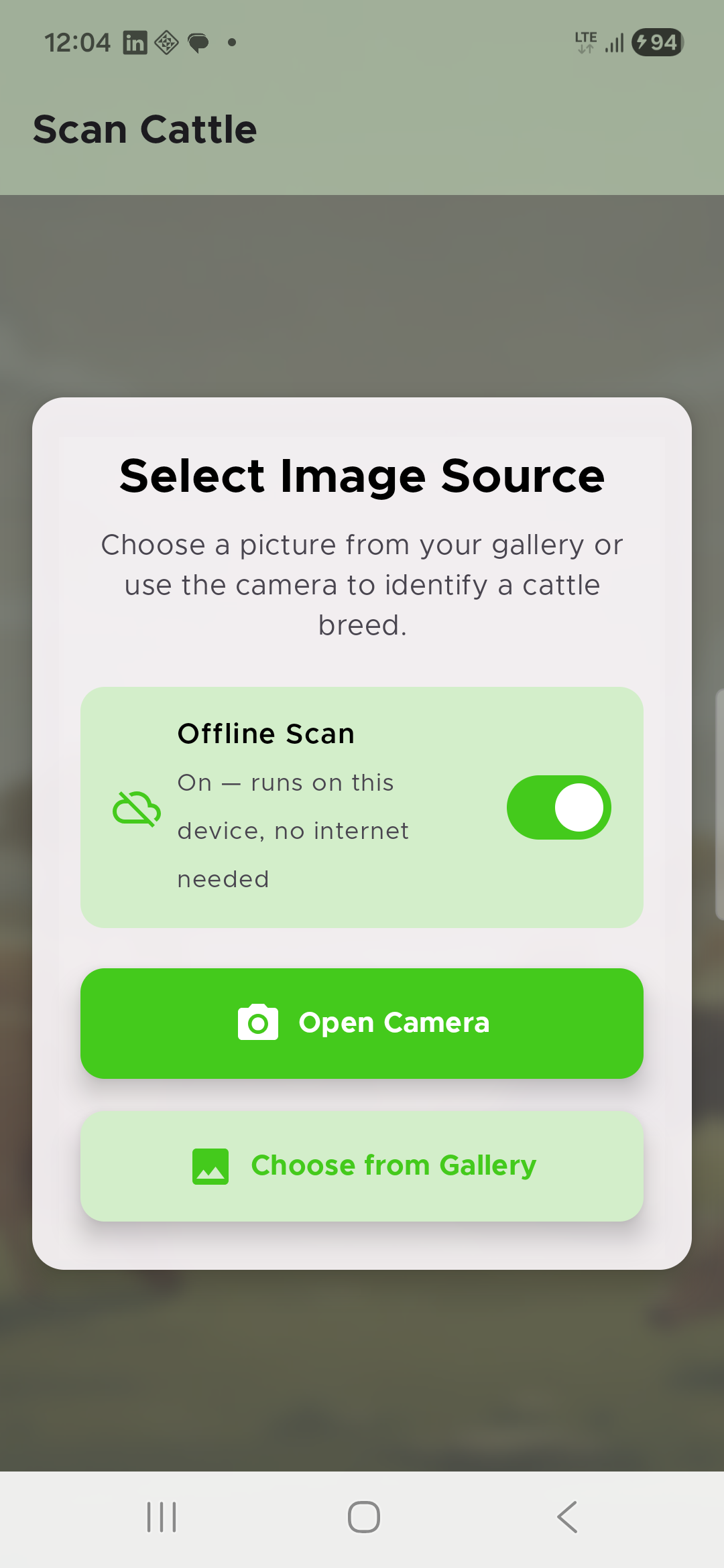
Figure 1. The toggle that decides which of the two prediction functions runs, screenshotted on an actual device, not a preview.
Flipping that switch sets a true/false value that travels along to the next screen, which checks it exactly once:
if (offline) {
    viewModel.classifyOnDevice(decodedUri)
} else {
    viewModel.uploadAndPredict(context, decodedUri)
}
That's the entire connection point. Everything covered above, the training, the format conversion, the shrinking, the accuracy testing, the speed testing, exists to make that one true branch worth having.
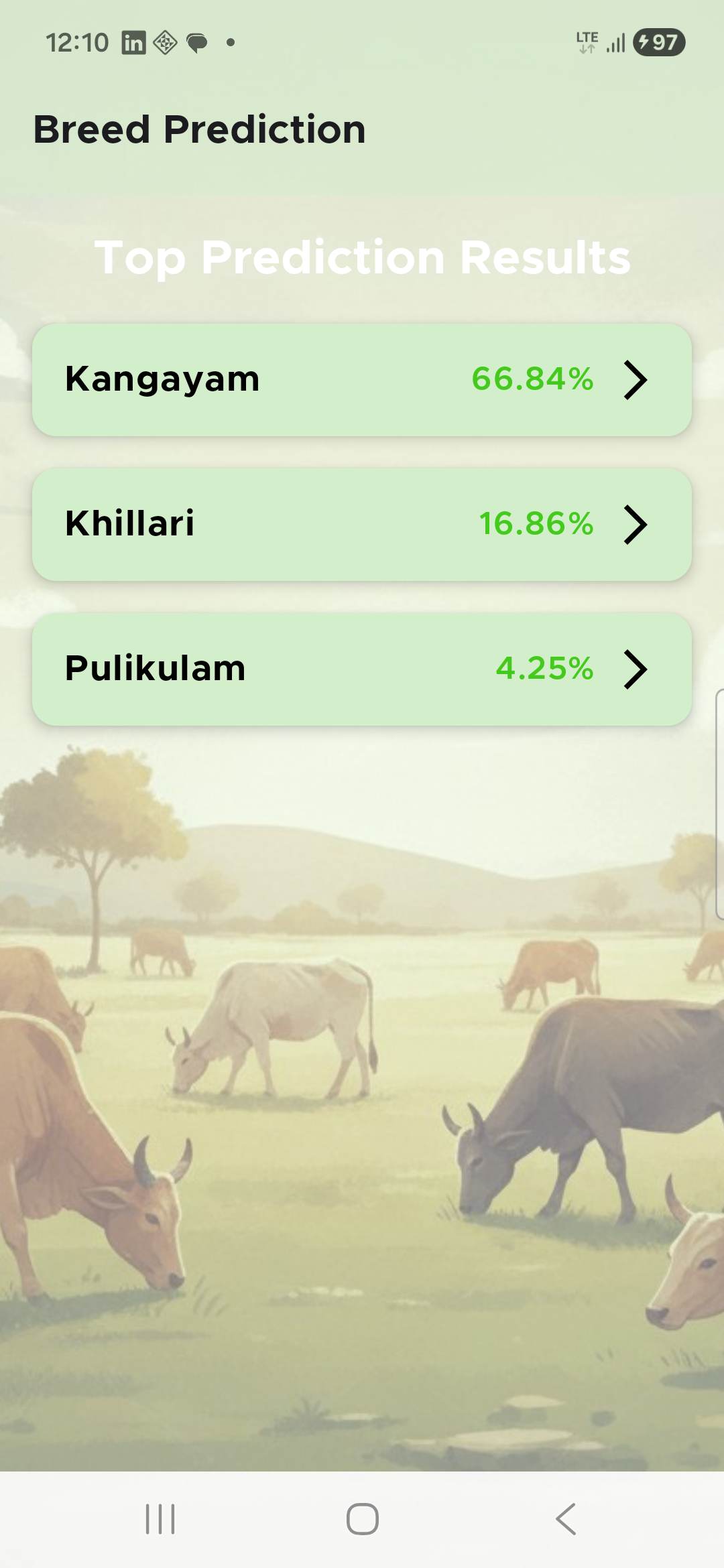
Figure 2. A real result from the on-device path, with the phone's network fully off, rendered through the exact same screen and success state the normal server-backed path uses.
Shrinking the App Around It
The model was the single biggest thing inside the app, but it wasn't the only thing. A setting called isMinifyEnabled was switched off in the release build. That setting controls a tool called R8, which normally strips out unused code, renames things internally to save space, and shrinks unused resources. With it off, every unused bit of every library the app depends on (CameraX, Compose, Lottie, and others, plus TensorFlow Lite itself) was just riding along in the shipped app for free, taking up space it didn't need to.
Turning it on is a one-line change, but "does everything still actually work" is a real question, not just a formality, so it got the same treatment as everything else in this post: an actual before-and-after build, installed on a real phone and actually used, not just assumed to be fine. Same code, same dependencies, with minification as the only thing that changed:
| not shrunk | shrunk | |
|---|---|---|
| Release app size | 52.0 MB | 39.65 MB |
23.7% smaller, on top of whatever the model quantization already saved, and in theory this should be a completely free win: R8 is only supposed to change which code ships, not how the app behaves.
Except it wasn't quite free. The first shrunk build installed fine, opened fine, and the home screen looked fine. Then trying to use the normal (non-offline) prediction path threw this error, live on the phone, not as some lint warning in an editor:
Unexpected error: java.lang.Class cannot be cast to
java.lang.reflect.ParameterizedType
That's a specific, well-documented failure. The function that talks to the server returns a somewhat nested data shape (a generic wrapper around another generic wrapper around a list). A library called Gson is what turns the server's JSON response into actual Kotlin objects, and to do that with a nested shape like this one, it needs some extra type information that normally lives in the compiled code. R8 strips that information out by default, to save space, unless you specifically tell it not to. And this particular data shape isn't unique to the prediction screen either. It's used for login, adding cattle, fetching cattle, and looking up breed info too, so this wasn't some narrow bug tucked away in one corner. It was every single network call in the app, all one shrink away from throwing the same error.
The fix is a standard, well-documented one once you know you need it, added as a few extra rules for R8 to follow:
# R8 strips generic signature metadata by default; Gson's reflection-based
# deserialization of nested generics (ApiResponse<T>, PredictionBody, ...) needs it.
-keepattributes Signature
-keepattributes *Annotation*
-keepattributes Exceptions

-keep,allowobfuscation,allowshrinking class com.google.gson.reflect.TypeToken
-keep,allowobfuscation,allowshrinking class * extends com.google.gson.reflect.TypeToken

# Gson maps JSON keys to fields by reflection; an obfuscated or stripped field
# fails silently instead of loudly, so keep the network models whole.
-keep class com.cattlelabs.cattleapp.data.model.** { *; }
Rebuilt, reinstalled, and tested again on the same phone: fixed, and the app only grew by about 17KB because of it, barely anything. Worth noting: the offline, on-device path never broke in the first place, because it never touches Gson at all, its inputs and outputs are just plain numbers and a small hand-written bit of math. R8 had nothing to trip over there. The regular server-based path was the only place carrying this risk, and it was carrying it quietly right up until a real, shrunk build actually got installed and actually got clicked through by hand.
Looking Back
0.60 percentage points. That's what shrinking the model actually cost, once it got measured properly instead of eyeballed off a single test run. It would've been easy to shrink it, run one accuracy check, see a small drop, and move on. Testing it five separate times and checking real phone photos by hand is what turned "probably fine" into an actual number with a margin of error attached, and it's also how the Gir photo showed up in the first place: not the model getting uniformly worse, just a handful of already-close calls tipping one way instead of the other.
Most of the conversion pipeline here is other people's tools, run in the right order. The part that took actual work was everything around it: training a model worth deploying in the first place, then not trusting that deployment until it got tested twice, on a real phone, with real photos.
Shrinking the app around the model came with its own version of that same problem. Turning on minification broke a real, working feature the first time it actually got used, in a way no code review would have caught. The only reason anyone noticed is that someone installed the build and clicked through it by hand. Making something smaller is the easy half of the job. Checking that it still works is the half that actually takes effort.
The full source is on GitHub.
if this made you think, you might enjoy something from the library.